Soon Come: Gale Tattersall Interview on DPE Podcast

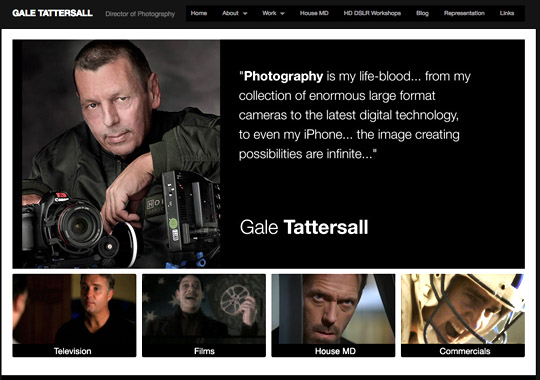
Soon come: My interview on the Digital Photo Experience podcast with Gale Tattersall, whose many accomplishments include being the director of photography on "House, M.D."

We talked about his craft, his HD SLR workshops, his work with the Canon 5D Mark II,  his family. . . and of course "House."


Juan Pons and I love doing the podcast. We have interviewed some of today's top pros – and have answered many of your questions. Keep those questions coming. Go to our site to see how to submit a question.

Gale is a true pro. An inspiration. Stay tuned.

Explore the light,
Rick

Blogging About Blogging?

Well, I never thought I'd be blogging about blogging. But hey, if Kramer can write a coffee table book on coffee tables, I guess it's ok.

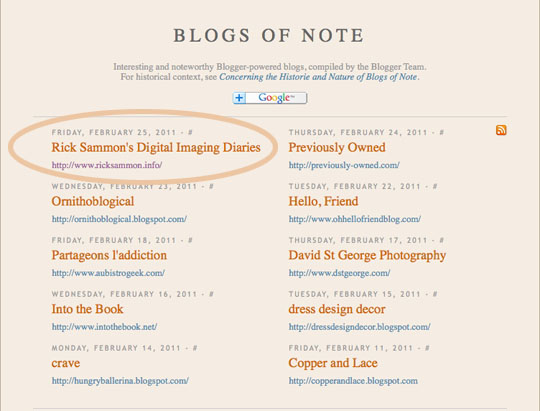
I just wanted to thank the folks at "Blog of Note" for naming my blog a Blog of Note. Kinda cool.

I'll keep blogging away.


Speaking of which . . . the "Battle of the HDR Tips - Ratcliff vs. Sammon," starts on Trey's site and on my site on Monday. Stay tuned! Scroll around here for more info.

Explore the light - and never underestimate the power of blogging,
Rick


Just Released: Rick Sammon's HDR Portfolio iPad App - A great way to master HDR photography.

 
My latest how-to iPad app - Rick Sammon's HDR Portfolio - is here!

And speaking of "here," the "Battle of the HDR Photo Tips, Ratcliff vs. Sammon," starts here on my blog, as well as on Trey Ratcliff's site, any day now. Join us ringside for the HDR photo fun.

Developed my Dr. Dave Wilson, who also developed my iPhone and iPad apps, Rick Sammon's 24/7 Photo Buffet, the interactive app features solid how-to information (tips, tricks and techniques) and more 300 images, including 30 of my latest HDR images. Several movies, including a clip me shooting an HDR sequence, are also included.

What's more, the app offers one of the coolest features I have seen when it comes to teaching and illustrating HDR: HDR Dissolve™.


To activate HDR Dissolve™ Simply touch the photo to see it magically transform into the final HDR image. Normal images dissolve into great HDR images - just by touching them! In some cases, a set of three original photos are provided, followed by one or more processed HDR images. Nice work Dr. Dave!


The app is divided into four major sections, making it easy to access the photographs and how-to information.

• Introduction – Dr. Dave and I cover the basics of HDR image making. Photographs, text and movies are provided for fast learning.

• Inside – Learn how to shoot in extreme contrast situations, and learn how to see the light and exposure for the dynamic range of a scene.

 • Outside – Travel with me around the world and see how he captures cityscapes, landscapes, and interior scenes, during the day and at night.

 • Nature – Learn how to capture the beauty of nature without being limited by the existing lighting conditions.  

This is not an app to process or take pictures. Please do not buy this app to edit your photos – it doesn’t so that! It is an educational app for digital SLR and compact camera photographers.


For each HDR image, I provides the location, number of exposures, processing program used, and tips about HDR and/or standard photography. EXIF camera and exposure info is also included for many images. A quick e-mail feature lets you share any image with family and friends.

Size: This app contains more than 100 MB of movies and photos. It’s self-contained, so you don’t need an Internet connection to use it.


To order the app and start the HDR learning and fun, click here.

$ave a Few Buck$: If you are new to HDR image-making and need an HDR plug-in (Nik Software's HDR Efex Pro) or program (HDR's Photomatix), click here to get the program/plug-in . . . and a discount (if you use the appropriate discount codes). While you are there, check out Topaz Adjust, which also helps expand the dynamic range of an image.

To see all my apps, click here.

Explore the light,
Rick

P.S. If you don't have an iPad, check out my book on HDR photography. It's pack with info and photo, too!

What's the First Thing You Do In Lightroom?

When I teach Lightroom, I ask the workshop students, "What's the first thing you do when you open the program?"

Some folks say, "Crop."

Others say, "Adjust the Exposure."

Still others say, "I don't know what the heck to do first. Help!"

Well, here is what I recommend as a very first step: Put down your stylus (if you are using a Wacom tablet) or take your hand off your mouse, and ask yourself, "What is lacking in a picture - and what can I do to make it better?"

Take your time, think a lot . . . as Cat Stevens used to say/sing.

Here is an example of what I'm talking about.
Above is a screen grab of my original image in Lightroom. In looking at the original photograph (the best I could get with my Canon 100-400mm IS lens from a bleacher that was about 300 yards away from these charging Mongolian soldiers), I asked myself: "What is lacking in the picture?"

The picture was lacking:
• Impact 
• Contrast 
• Color 
• Sharpness  

Knowing that, I made the following adjustments. The order does really not matter - except for sharpening. You should always sharpen last.

• Impact - improved by cropping out the dead space.
• Contrast - improved by adjusting the Tone Curve. 
• Color - improved by increasing the Saturation.
• Sharpness - improved by boosting the Clarity and Sharpness.

Play around with the Tone Curve. It is one of the coolest features in Lightroom. Also, when you are sharpening, place the most important part of the picture in the Sharpening window.

Below is another shot from the same event. Here, too, Lightroom came to the rescue!


Explore the light,
Rick

P.S. You can order Lightroom here:

A Quick Trick With Nik

Here's a quick trick that you can use with Nik . . . Nik Software's line of way-cool plug-ins. The trick: applying a filter selectively.

Here I used the new Nik Silver Efex Pro.


Make a selection of the main subject. Here I used the Quick Selection tool in Photoshop. Once you make your selection (see the marching ants around your subject), go to Select > Inverse.


When you open Silver Efex Pro, the window will only show the selected part of the image. When you apply the effect, it will only be applied to the part of the image that you can see in the window.

Another way to do this when using Silver Efex Pro is to apply the filter to the entire image. After you press OK, the effect is applied to a new layer on top of your original image. Now, simply erase the area of the photo you want in color.

When you are working in and playing with Silver Efex Pro, or any plug-in for that matter, check out the pre-sets. They are great starting points to get your creative juices flowing.

For a discount on all of Nik filters, including the brand new Silver Efex Pro, click here.

Explore the light,
Rick


P.S. My March webinar for Nik is filling up. To sign up, click here!